How to See Who Reposted Your Instagram Post
Learn how to see who reposted your Instagram post, check repost notifications and Insights, find reposted Reels, and understand hidden shares.
How to See Who Reposted Your Instagram Post Guide
Have you noticed a repost count on your Instagram post but cannot figure out who shared it? Instagram allows people to repost public posts and Reels, but finding the accounts behind those reposts is not always straightforward.
If you want to know how to see who reposted your Instagram post, start by checking your Instagram notifications, the repost activity on the original post, and the Reposts tab of accounts you suspect. Professional accounts can also check repost and share metrics through Instagram Insights. However, Instagram does not provide a guaranteed complete list of everyone who redistributed your content.
The answer also depends on whether someone used Instagram's official Repost feature, shared your post to a Story, forwarded it through a direct message, or uploaded a copy. If you want to inspect the original publicly available content, an Instagram Post Viewer can help you view eligible posts, but it cannot identify who reposted them. This guide explains each method, what information Instagram reveals, and how to control reposting.
Can You See Who Reposted Your Instagram Post?
Yes, you can sometimes identify people who used Instagram's official Repost feature. Repost notifications may display usernames, and some repost activity can be visible through Instagram's interface. However, there is no universally available list that reveals every account that reposted or shared your content.
Instagram introduced its native Repost feature for eligible public posts and Reels in August 2025. It allows users to redistribute content while crediting the original creator.
This is different from sharing a post through a private message or uploading someone else's photo as a new post. Each action provides a different level of visibility.
What Instagram Shows About Reposts
| Repost or Sharing Method | Can You Identify the Account? | Where to Check |
|---|---|---|
| Native Instagram Repost | Sometimes | Notifications, repost indicators, Reposts tab |
| Post shared to a Story with a mention | Usually, if accessible | Mentions and direct messages |
| Post shared to a Story without a mention | Not reliably | Limited public visibility |
| Post forwarded through DM | No | Individual sender details unavailable |
| Screenshot uploaded as a new post | Not automatically | Manual search |
| Post link shared externally | Not reliably | No complete sender list |
| Reel reposted using Instagram's Repost feature | Sometimes | Repost notifications and profile activity |
A visible repost count does not guarantee that Instagram will display every username behind it. Some activity may be visible individually, while other information appears only as an aggregate number.
How to See Who Reposted Your Instagram Post
There are several ways to check repost activity. The most useful method depends on whether you want to identify a specific account or understand how many times your content was redistributed.
Method 1: Check Your Instagram Repost Notifications
Instagram's Activity section is a useful starting point because native reposts may generate notifications identifying the account responsible.
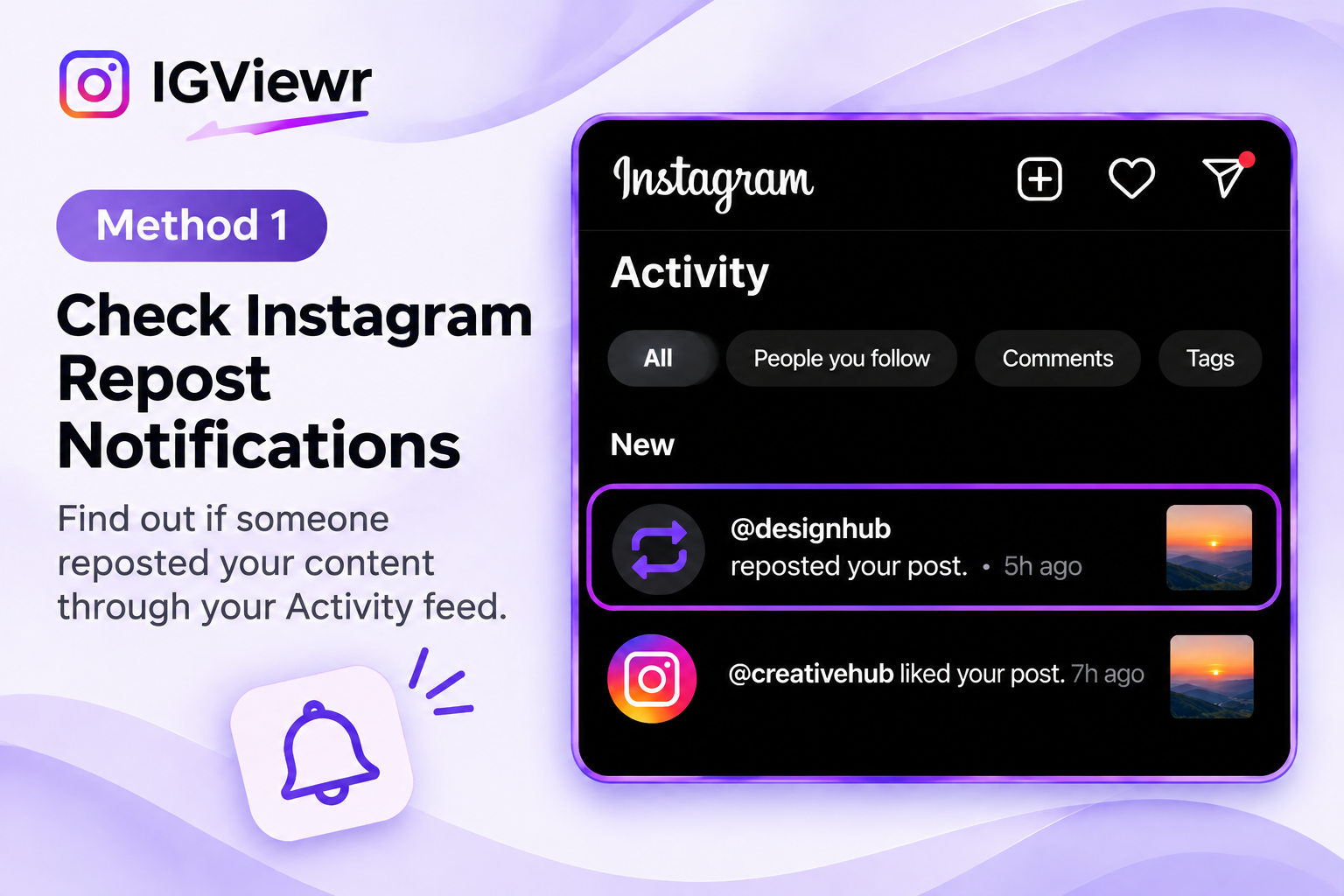
Follow these steps:
- Open the Instagram app.
- Go to your Home feed.
- Tap the heart-shaped Activity or Notifications icon.
- Look for notifications related to your post or Reel.
- Check for a notification indicating that someone reposted your content.
- Tap the notification, if available, to view the associated account or post.
Some users receive notifications containing the username of the person who reposted their content. However, notification behavior can vary by account, app version, and notification settings.
If your post shows several reposts but you only received one notification, that does not necessarily mean the remaining reposts are invalid.
Method 2: Check the Repost Indicator on Your Original Post
Instagram's native Repost feature uses an icon resembling two arrows. Depending on the app interface, you may also see a repost count or profile indicators associated with repost activity.
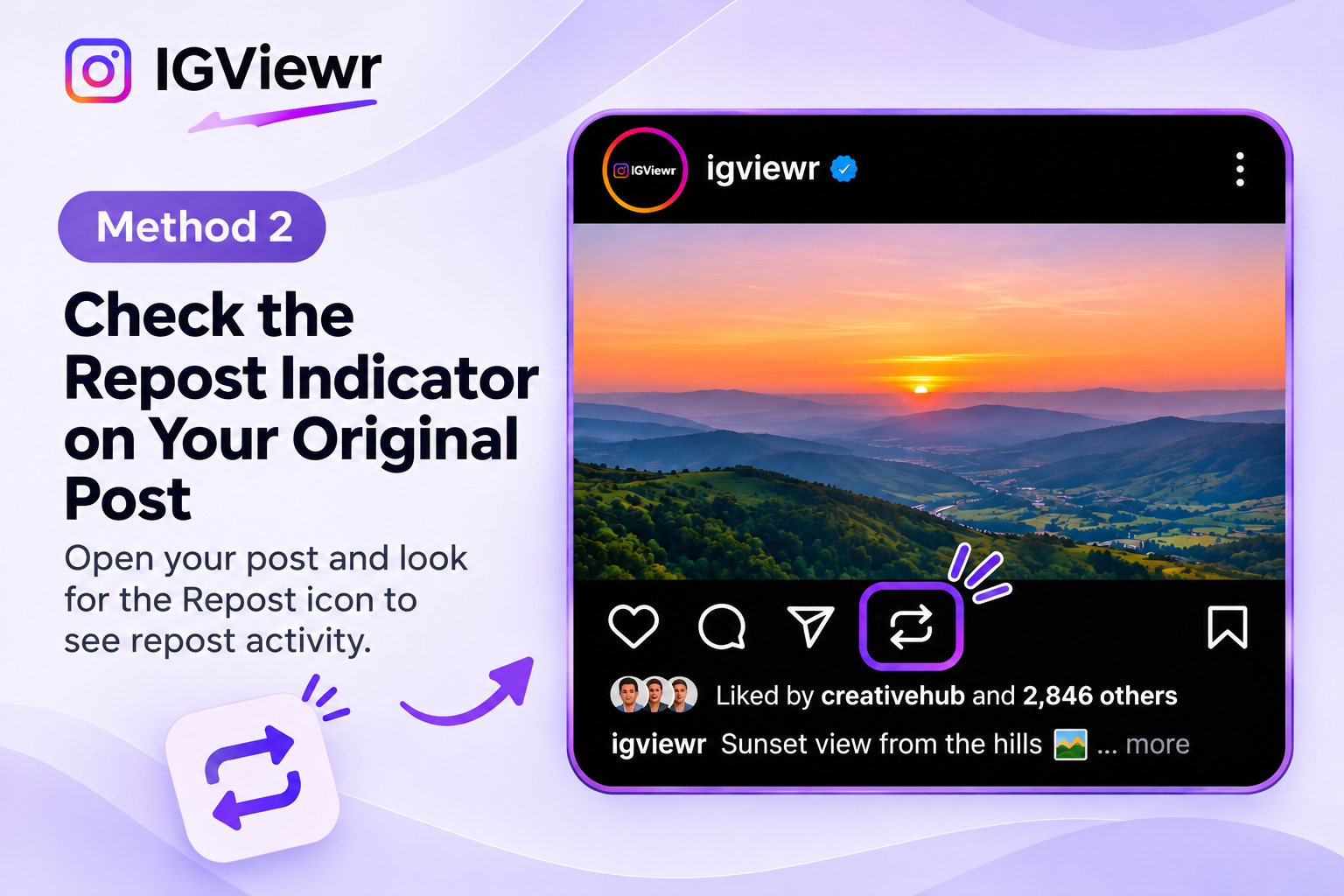
To check:
- Open Instagram and visit your profile.
- Select the post you want to investigate.
- Look for the Repost icon or any visible repost activity.
- Tap an available repost count or profile indicator.
- Review the information Instagram displays.
Some versions of Instagram may surface accounts associated with repost activity when you interact with these controls. However, the count may not open a complete list, and the feature may behave differently across accounts.
If tapping the repost count does nothing, try checking notifications or individual profiles instead.
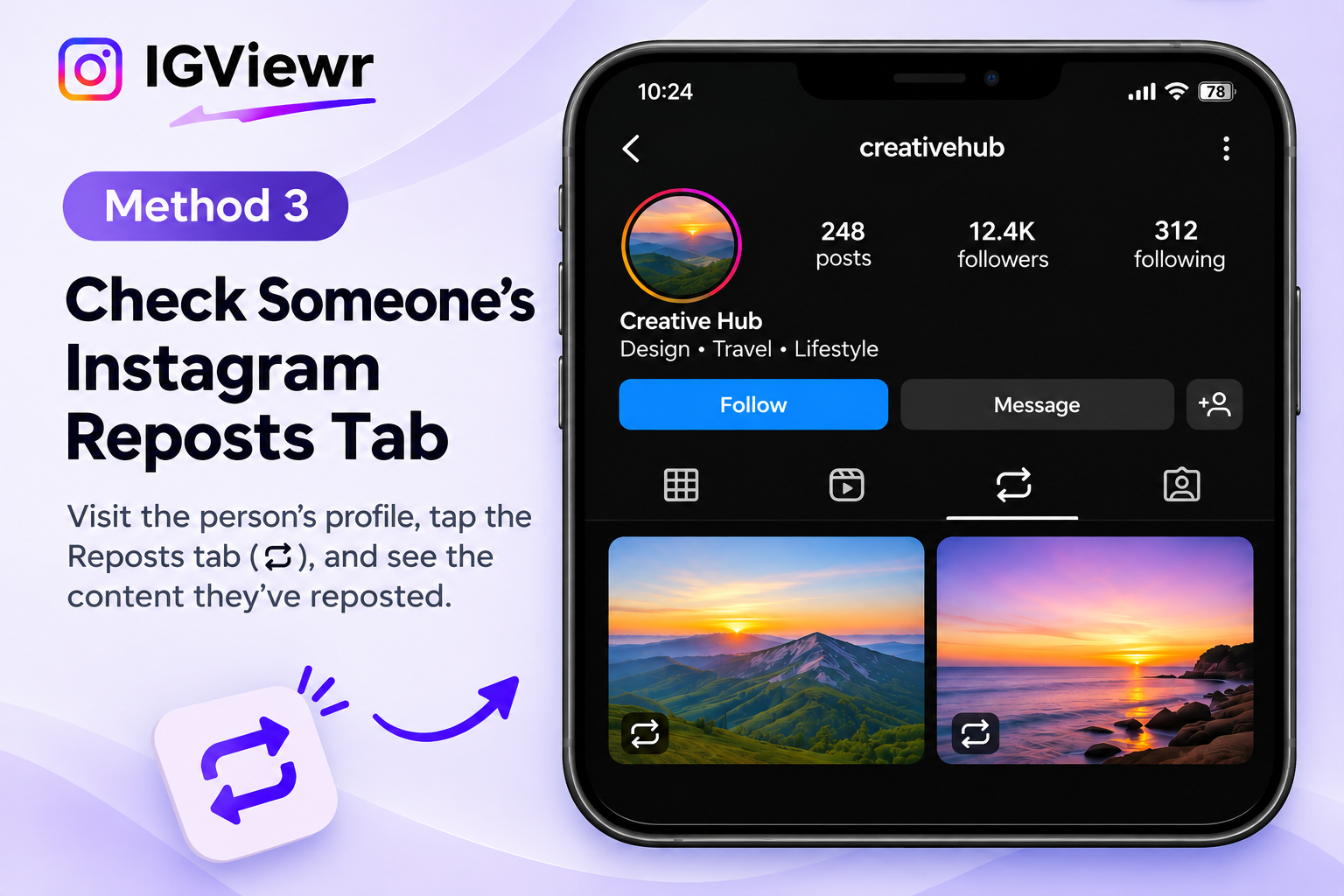
Method 3: Check Someone's Instagram Reposts Tab
Instagram provides a dedicated Reposts tab on supported profiles. This tab displays content that an account has reposted using Instagram's native feature.
If you suspect a particular person reposted your content, you can check their profile.
- Open Instagram.
- Search for the person's username.
- Visit their profile.
- Look for the Reposts tab, usually represented by the repost arrows.
- Open the tab.
- Check whether your original post appears.
This method is particularly useful when you want to confirm whether one specific account reposted your post.
However, you can only inspect repost activity that Instagram makes accessible to you. Private account restrictions, removed reposts, and unavailable features may limit what appears.
If you need to inspect publicly accessible account information, IGViewr also provides an Instagram Profile Viewer. It is intended for eligible public profile information and should not be confused with a private repost-tracking tool.
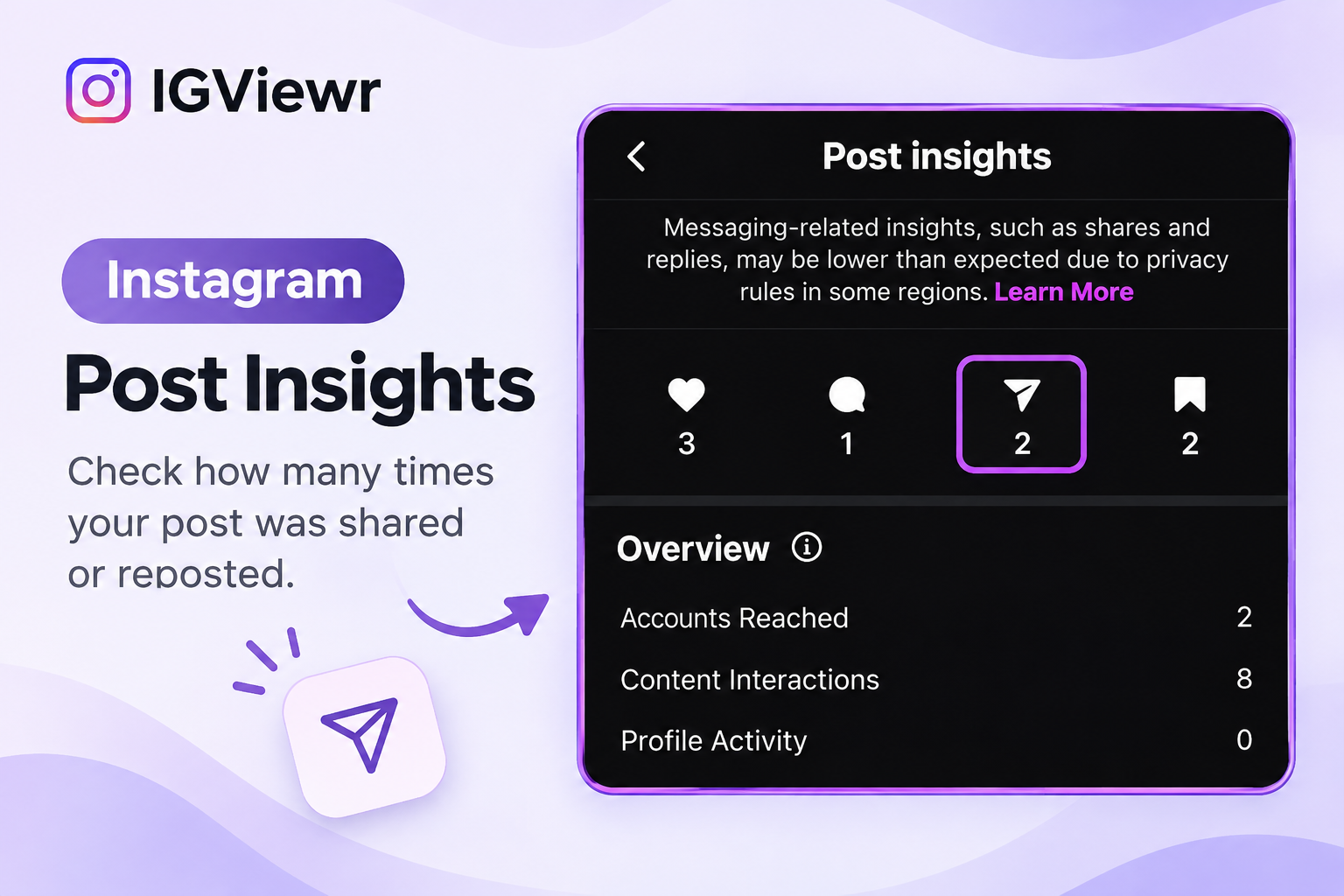
Method 4: Check Instagram Post Insights
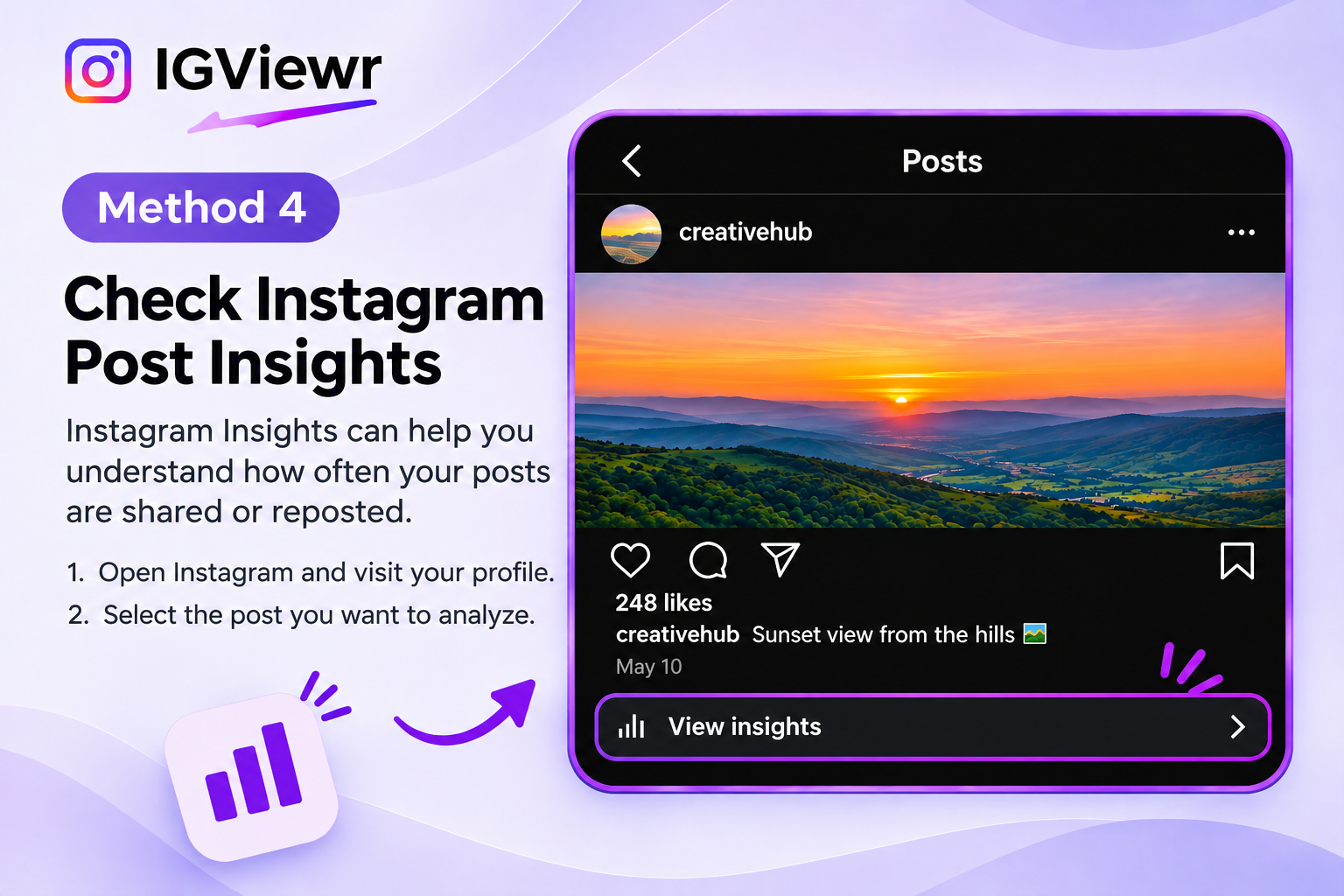
Instagram Insights can help you understand how often your posts are shared or reposted.
Creator and Business accounts generally have access to more detailed analytics than personal accounts.
To check your post Insights:
- Open Instagram and visit your profile.
- Select the post you want to analyze.
- Tap View Insights.
- Review the available engagement metrics.
- Look for reposts, shares, or sends, depending on the metrics displayed.
Insights may show how many times your content was reposted or shared, but they do not provide a complete list of the usernames behind those actions.
For example, a post may show 12 reposts while your notifications identify only a few accounts. This difference does not automatically indicate an error.
Method 5: Check Instagram Mentions and Story Reshares
Sometimes, people use the word repost when they actually mean sharing your feed post to an Instagram Story.
If someone shares your post to their Story and mentions your username, Instagram may notify you through messages or activity notifications.
To check:
- Open your Instagram inbox.
- Look for Story mention notifications.
- Check your message requests if necessary.
- Open any available Story mention.
- Identify the account that shared your content.
Remember that Instagram Stories normally disappear after 24 hours unless they are saved as Highlights. You may no longer be able to open an expired Story reshare.
You can learn more about publicly accessible Story content through IGViewr's Instagram Story Viewer. It does not reveal private Story shares or hidden repost identities.
What Is the Instagram Repost Feature?
Instagram's native Repost feature allows users to redistribute eligible public posts and Reels without manually downloading and uploading the content.
A repost remains connected to the original creator, helping preserve attribution. It can appear in the reposter's dedicated Reposts tab and may be recommended to their followers.
This feature is different from older methods that involved screenshots, third-party repost apps, or sharing content through Stories.
How to Repost Someone's Instagram Post
To repost eligible content:
- Open a public Instagram post or Reel.
- Find the Repost icon, represented by two arrows.
- Tap the icon.
- Add a note if Instagram offers that option.
- Confirm the repost if prompted.
The repost may then appear in your profile's Reposts tab and be distributed through Instagram's recommendation features.
Not every post is eligible for reposting. Availability depends on the content, account permissions, and Instagram's current settings.
Where Do Instagram Reposts Appear?
Native reposts can appear in several places:
- The Reposts tab on the account that reposted the content.
- Instagram's feed or recommendation surfaces.
- Repost activity indicators associated with eligible posts.
- Notifications shown to the original creator, where supported.
Reposting does not normally create an entirely new original feed post under the reposter's authorship. The feature is designed to preserve a connection to the original content.
Instagram Repost vs. Share: What's the Difference?
Instagram users often describe several different actions as reposting. However, a native repost, Story reshare, DM send, and manual upload are not the same thing.
Understanding these differences is important because each action has different privacy and tracking limitations.
| Feature | Native Repost | Story Share | DM Share | Manual Reupload |
|---|---|---|---|---|
| Uses Instagram's official Repost feature | Yes | No | No | No |
| Appears in Reposts tab | Usually | No | No | No |
| Preserves original post attribution | Yes | Usually through shared post | Yes, through shared link/content | Not automatically |
| May identify the person sharing | Yes, sometimes | If visible or mentioned | No | Only if discovered |
| May appear in Insights | Yes, if supported | Sharing metrics may apply | Aggregate sends/shares may apply | Not linked automatically |
| Automatically creates a separate uploaded post | No | No | No | Yes |
Native Repost vs. Story Reshare
A native repost uses Instagram's dedicated Repost feature. It can appear in the reposter's Reposts tab and remains connected to the original post.
A Story reshare places the original post or Reel inside someone's Story. That Story is normally temporary, and the original creator may only identify the person if Instagram surfaces the activity or the person mentions them.
These actions should not be counted as identical without checking the metric labels.
Repost vs. Sending a Post Through DM
Sending a post through Instagram Direct Messages is a private sharing action.
The original creator generally cannot see who forwarded the post or who received it. A professional account may see aggregate sharing metrics, but those metrics do not reveal private conversations.
Repost vs. Downloading and Uploading Again
A manual reupload happens when someone downloads, screenshots, or records content and publishes it as a separate post.
Instagram may treat that upload as new content rather than an official repost. It might not appear in the original creator's repost count or notifications.
If someone copies your content without permission, you may need to report the separate upload rather than search for it through the native Repost feature.
Can You See Who Reposted Your Instagram Reel?
You may be able to identify certain accounts that reposted your Reel using Instagram's native Repost feature. However, Instagram does not guarantee a complete list of everyone who redistributed it.
Reels can also be shared through Stories, private messages, external links, and manual downloads. These methods do not all provide the same information.
How to Check Instagram Reel Reposts
- Open Instagram and visit your profile.
- Select the Reel you want to check.
- Look for its Repost icon or related activity.
- Check your notifications for repost activity.
- Open View Insights, if available.
- Review repost and sharing metrics.
If you suspect a specific account, you can also check its Reposts tab.
To explore publicly available Reel content, you can use IGViewr's Instagram Reels Viewer. This is separate from Instagram's native repost analytics.
Can You See Who Shared Your Reel to Their Story?
Instagram does not provide a guaranteed complete list of people who reshared your Reel to their Stories.
If someone mentions you, you may receive a notification. Otherwise, you might not know who shared it.
A Reel's share count should not be treated as a list of identifiable accounts.
Can You See Who Shared Your Instagram Post Through Direct Messages?
No. Instagram does not provide the original post creator with the identities of people who forwarded the post through private direct messages.
A post may have a high number of shares, but those numbers do not reveal who sent the content or which conversations received it.
This limitation applies to ordinary posts, Reels, and other content shared privately through Instagram's messaging features.
Does Instagram Show Who Sent Your Post to Someone Else?
No. Instagram protects private conversations and does not offer a creator-facing list of DM senders or recipients.
For example, if your post has 20 recorded shares, you cannot assume that 20 separate people sent it through DMs. Sharing metrics may represent actions rather than unique users, and their definitions can vary.
Can a Professional Account Reveal Private Sharers?
No. Switching to a Creator or Business account can provide more analytics, but it does not grant access to private messaging identities.
Professional Insights are designed to measure performance, not expose the participants in other people's conversations.
Why Can't I See Who Reposted My Instagram Post?
You may notice a repost count without seeing any usernames. This can happen because Instagram's repost activity and notification features do not always display the same information.
The following table explains common problems and what you can do.
| Problem | Possible Reason | Suggested Solution |
|---|---|---|
| Repost count appears but no usernames | No complete reposter list is available | Check notifications and visible repost indicators |
| No repost notification | Notification behavior or settings | Review Activity and notification preferences |
| Reposts tab is missing | Feature or account limitations | Update Instagram and check again |
| Repost count is unavailable | Account or content limitations | Check available Insights |
| Someone reposted but it is not visible | Private account or removed repost | Check accessible profile activity |
| Someone copied your post | Manual upload, not native repost | Search for the copied content |
| Reel has shares but no reposters listed | Shares and reposts are different | Review the metric label |
| Repost option is disabled | Creator restrictions or content eligibility | Review sharing settings |
The Person Has a Private Account
If the person who reposted your content has a private account, you may not be able to inspect their Reposts tab unless you have permission to view their profile.
Instagram's privacy restrictions still apply to repost activity.
You can read more about these limits on IGViewr's Private Instagram Viewer page. Private content cannot legitimately be accessed by bypassing account permissions.
The Repost Was Removed
Someone may repost your content and later undo the action.
If a repost is removed, it may disappear from their Reposts tab. Instagram's reporting can also change as repost activity is updated.
A notification, if previously delivered, should not be treated as proof that the repost is still active.
The Person Shared Your Post Privately
A person may send your post through a DM instead of using the Repost feature.
Private sends do not create ordinary public reposts, and Instagram does not reveal the sender's identity to the original creator.
Instagram Has Not Made the Feature Available
Instagram's interface can differ between accounts and app versions. Some users may see repost counts or profile indicators that others do not.
Update Instagram through the official app store and check whether the feature is available on your account.
Switching to a professional account may provide additional analytics, but it will not guarantee access to individual reposter identities.
How to Stop Someone From Reposting Your Instagram Posts
Instagram provides controls that can restrict native reposting and certain sharing actions.
These settings are useful if you do not want your public posts or Reels redistributed through Instagram's built-in Repost feature.
Turn Off Reposts for Your Posts and Reels
To check your repost settings:
- Open Instagram and visit your profile.
- Tap the three-line menu.
- Find Sharing and reuse.
- Look for Reposts on posts and reels.
- Turn off the option if you do not want others to use the native Repost feature on your content.
The exact setting name and location may vary depending on your Instagram version.
Disabling native reposts does not necessarily stop someone from sending a link, taking a screenshot, or copying your content.
Make Your Instagram Account Private
A private account restricts access to your content to approved followers and limits public sharing options.
However, private account settings cannot guarantee that an approved follower will never capture or redistribute content manually.
You can review the difference between public and restricted Instagram content in IGViewr's guide to viewing Instagram without an account.
Report Someone Who Reuploaded Your Content
If someone copies your original photo or video and publishes it without permission, you can use Instagram's reporting options.
Open the copied post, tap the three-dot menu, and look for the appropriate reporting category.
For copyright-related complaints, use Instagram's intellectual property reporting process when applicable. Be prepared to provide information showing that you own or are authorized to represent the original work.
A manual reupload is different from an official repost that credits the original creator.
Can You Find Instagram Reposts Without Following Someone?
Sometimes. If an account is public and its Reposts tab is accessible, you may be able to inspect its reposted content without following it.
However, Instagram does not guarantee that every repost will appear in a public search or that every account's repost activity will be accessible.
You can also search for public mentions, captions, and hashtags associated with your original content.
Search for Your Username and Original Caption
If someone manually reuploaded your post, they may have credited your username or copied part of your caption.
Try searching Instagram for your username, brand name, or a distinctive phrase from your original post.
You can also search Google using a query such as:
site:instagram.com "unique phrase from your caption"
This method may help you find indexed public copies, but it cannot reveal private posts or guarantee that every repost will be discovered.
Check Public Posts and Comments
Some people credit the original creator in a caption or comment instead of using Instagram's official Repost feature. You can inspect visible comments on eligible public posts using an Instagram Comment Viewer, although comments cannot confirm every repost.
If you discover a possible copy, check its caption, comments, and account information for attribution.
For eligible public posts, you can examine the content and its visible discussion, but this does not identify hidden repost activity or private sharers.
Can Third-Party Apps Show Who Reposted Your Instagram Post?
Third-party applications cannot reliably provide a complete list of everyone who reposted or privately shared your Instagram content.
Some tools can display public account information or analytics available through approved integrations. However, they cannot automatically reveal private DM activity, inaccessible profiles, or every manual reupload.
Why Repost Tracker Apps Can Be Misleading
Some services advertise features such as revealing secret reposters or showing everyone who shared your post.
These claims may go beyond the information Instagram makes available. A service may simply display public reposts, estimated engagement, or metrics already visible through Insights.
A tool showing a repost count is not necessarily identifying the people responsible.
Can Instagram's API Reveal Reposter Usernames?
Instagram's approved APIs provide access to certain account, content, and analytics information.
However, API access does not grant unrestricted visibility into private messages, hidden repost identities, or all accounts that have copied a post.
Even legitimate analytics tools must operate within Instagram's available permissions and data limits.
How to Avoid Unsafe Repost Tracking Tools
Be cautious of websites that promise access to private repost data, especially when they ask for your Instagram password.
Avoid tools that request unnecessary account permissions, redirect you to suspicious login pages, or claim to bypass Instagram's privacy restrictions.
For accurate information, use Instagram's native notifications, repost indicators, profile activity, and Insights.
Frequently Asked Questions
How do I see who reposted my Instagram post?
Open Instagram and check your Activity notifications for repost alerts. You can also inspect the repost indicator on the original post or visit a suspected account's Reposts tab. Instagram does not guarantee a complete list of all reposters.
Can you see who reposted your Instagram post in 2026?
Sometimes. Instagram's native Repost feature can make certain repost activity visible, including through notifications and accessible profile tabs. However, not every repost or share is identifiable.
Does Instagram notify you when someone reposts your post?
Instagram may send notifications for native reposts, but notification delivery is not guaranteed for every repost. Private DM shares and manual uploads generally do not generate the same type of repost notification.
Why does my Instagram post say one repost but show no name?
A repost count and a notification are different features. Instagram may record a repost without showing you a corresponding username in the available interface.
Can I see who reposted my Instagram Reel?
You may identify some native Reel reposts through notifications or accessible profile activity. Insights may show aggregate repost metrics, but they do not provide a guaranteed complete list of accounts.
Can you see who shared your Instagram post to their Story?
Sometimes. If the person mentions you or Instagram makes the reshare visible, you may identify them. However, Instagram does not provide a universal list of everyone who shared your post to a Story.
Can you see who sent your Instagram post through DM?
No. Instagram does not reveal the sender or recipient of a private post share to the original creator.
Can someone repost my Instagram post without following me?
Yes, eligible public posts and Reels may be reposted by accounts that do not follow the original creator, subject to Instagram's sharing controls and content restrictions.
Can someone repost my content without me knowing?
Yes. Someone may repost your content without generating a visible notification. They may also share it privately or manually upload a copy without tagging you.
Can I see everyone who reposted my Instagram post?
Instagram does not offer a guaranteed complete list covering native reposts, Story shares, private sends, and manual uploads. Some individual accounts may be identifiable, but others will remain unknown.
Does switching to a Business account show who reposted your posts?
No. A Business or Creator account can provide additional performance metrics, but it does not automatically reveal the identities behind every repost or private share.
How do I remove someone's repost of my Instagram post?
If you own the original content, you can disable future native reposting through available sharing settings. If someone has manually uploaded your copyrighted work without permission, you can report the copied content through Instagram's appropriate reporting process.
Final Thoughts
Learning how to see who reposted your Instagram post starts with understanding the difference between native reposts and other sharing methods.
Instagram's official Repost feature may help you identify certain accounts through notifications, repost indicators, and accessible Reposts tabs. Professional Insights can also provide useful repost and sharing metrics.
However, Instagram does not provide a complete list of every person who shared your content. Private DM sends, untagged Story shares, and manual reuploads may remain unidentified.